Amazon Simple Storage Service (Amazon S3) is a highly scalable object storage service provided by Amazon Web Services (AWS). It is a fundamental building block for cloud-based applications and data storage. In this guide, we’ll walk through creating an S3 bucket in the AWS Management Console, with a focus on the configuration options that matter.
Sign in to AWS Management Console
Sign in to your AWS Management Console. If you don’t have an AWS account, you’ll need to create one first. Once you’re logged in, navigate to the Amazon S3 service.
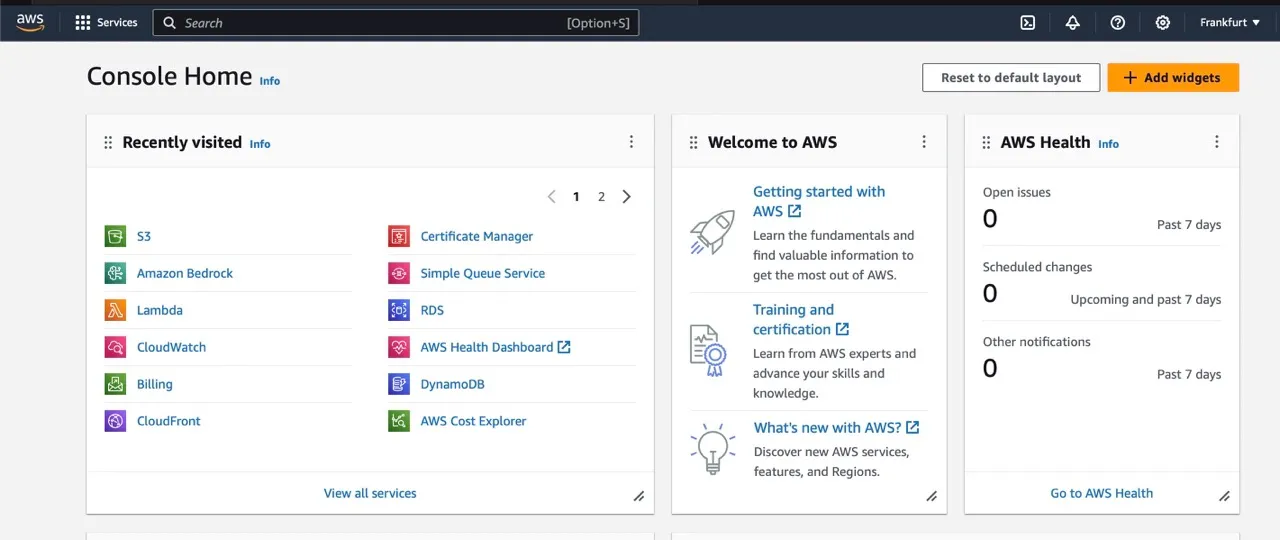
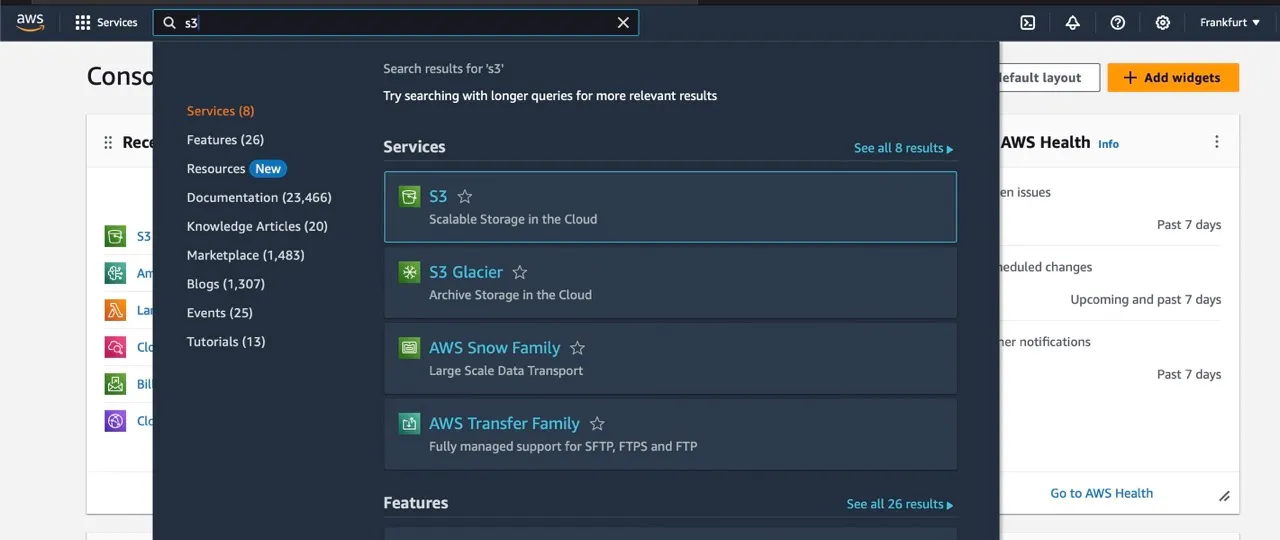
Choose ‘Buckets’
In the left navigation pane of the Amazon S3 console, click on ‘Buckets.’ This is where you’ll manage and create your S3 buckets.
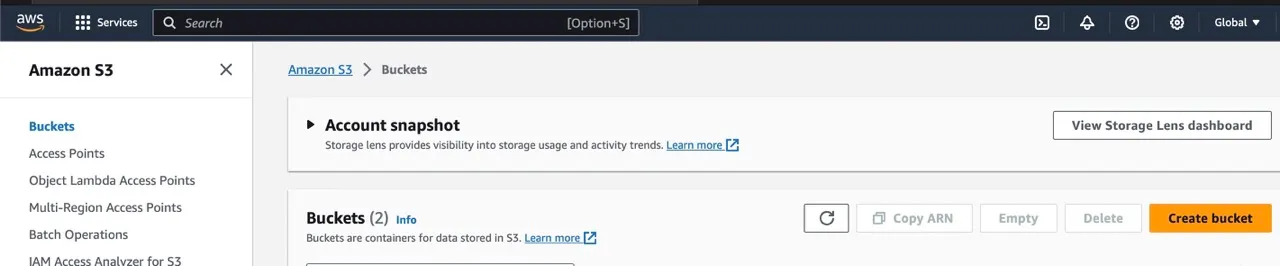
Create a Bucket
To create a new bucket, click on the ‘Create bucket’ button.
Define Bucket Name
On the ‘Create bucket’ page, you’ll be prompted to name your bucket. The name must follow several rules:
- It must be unique within the AWS partition you select (there are three partitions:
aws,aws-cn, andaws-us-gov). - It must be between 3 and 63 characters long.
- It can only contain lowercase letters, numbers, dots (
.), and hyphens (-). - It must begin and end with a letter or number.
- It can’t contain two adjacent periods or be formatted like an IP address (for example,
192.168.5.4). - It can’t start with
xn--orsthree-, or end with-s3alias. - You can’t rename a bucket after creating it, so choose carefully.
Avoid dots in bucket names unless you’re hosting a static website. They break HTTPS with virtual-hosted-style access, because the bucket name no longer matches the wildcard TLS certificate.
Select AWS Region
Choose the AWS Region where you want your bucket to reside. The right region can reduce latency, control costs, and satisfy regulatory requirements. Objects stored in a Region stay there unless you explicitly transfer them.
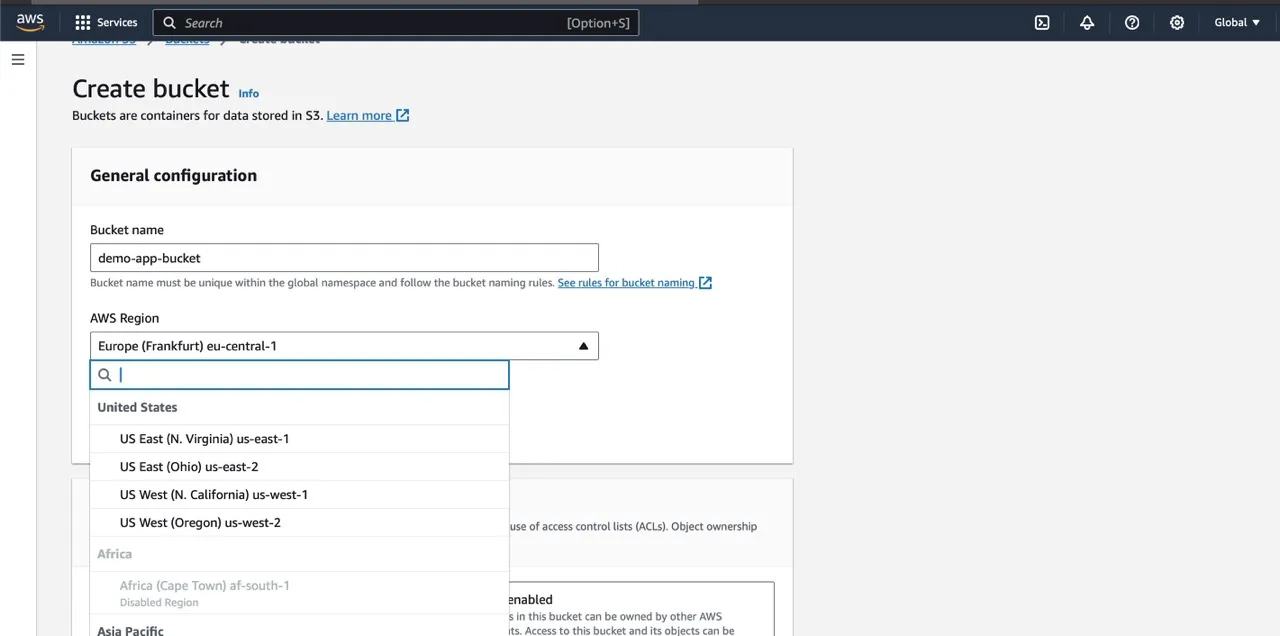
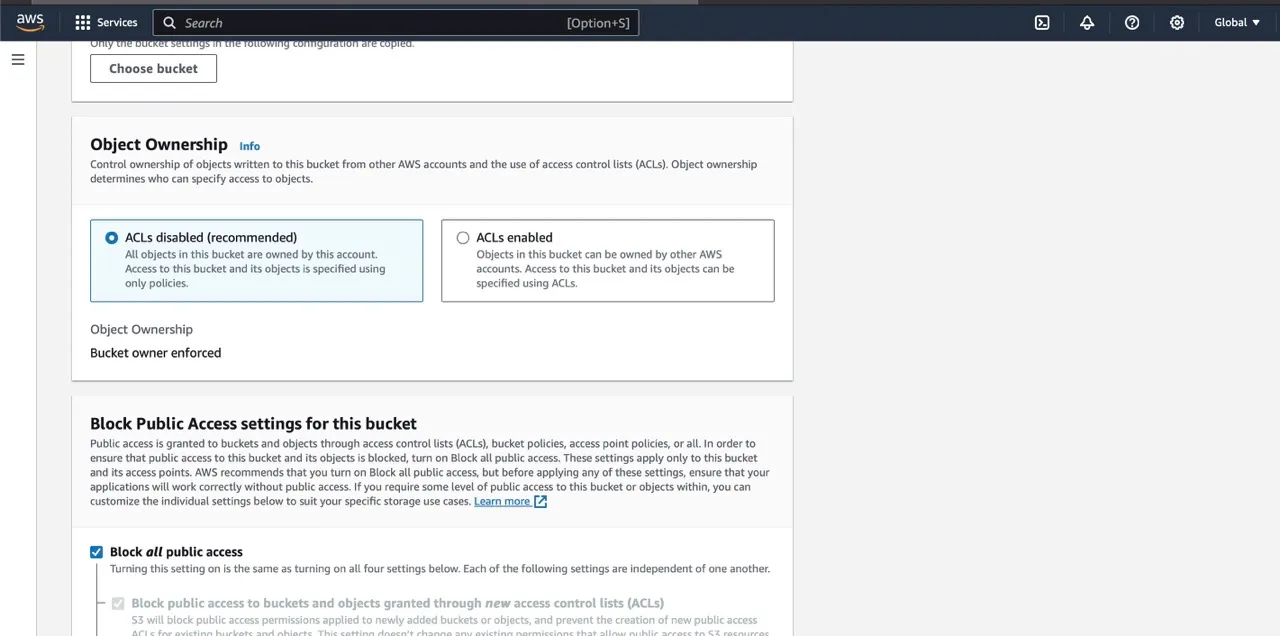
Configure Object Ownership
Object Ownership controls who owns the objects in your bucket and whether Access Control Lists (ACLs) are used. There are two modes:
- ACLs disabled (recommended, default): The bucket owner automatically owns and controls every object in the bucket, and access is managed only through policies (IAM, bucket policies). This is the simplest and safest choice, and the right one for almost every new bucket.
- ACLs enabled: Access can also be granted through ACLs. You then pick one of two settings:
- Bucket owner preferred: The bucket owner owns objects that other accounts upload with the
bucket-owner-full-controlcanned ACL. - Object writer: The account that uploads an object owns it.
- Bucket owner preferred: The bucket owner owns objects that other accounts upload with the
Only enable ACLs if you have a legacy workflow that depends on them.
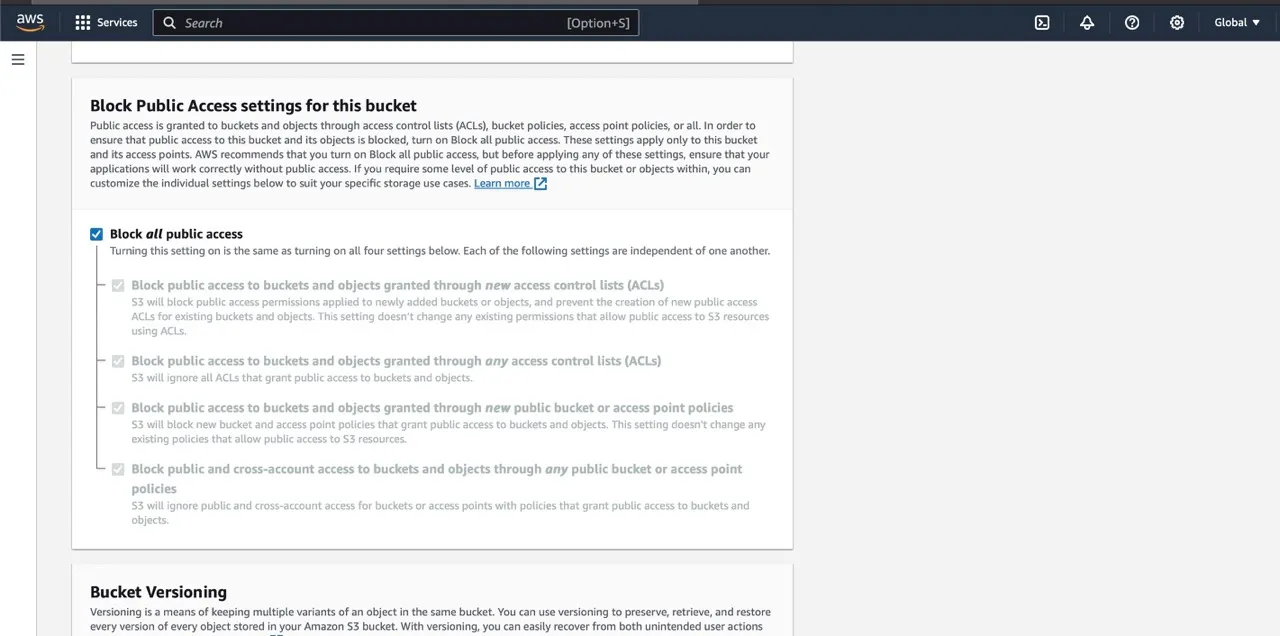
Block Public Access
All four Block Public Access settings are enabled by default, and you should keep them that way unless you have a specific reason to serve public content. If you turn them off, the console asks you to acknowledge that the bucket and its objects could become public.
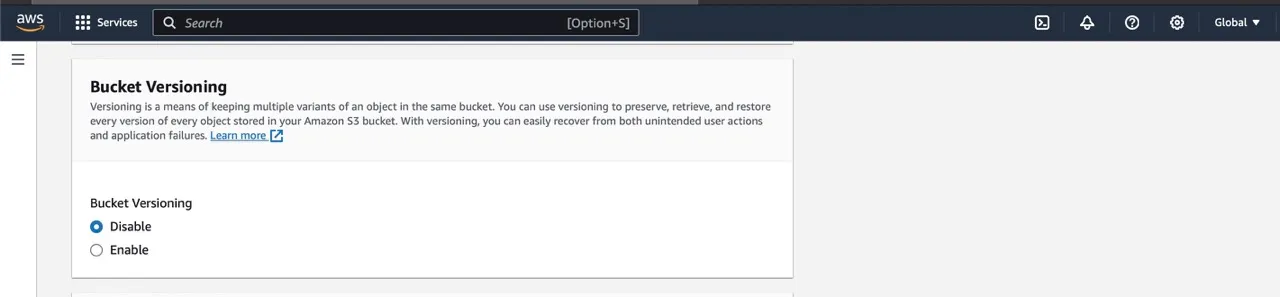
Enable Versioning (Optional)
Versioning keeps multiple versions of an object, so you can recover from accidental overwrites and deletions. Keep in mind that every stored version is billed. If you enable versioning, consider adding a lifecycle rule later to expire old versions.
Add Tags (Optional)
Tags are key-value pairs that help you categorize resources, track costs, and manage access. For example, project=website or env=staging.
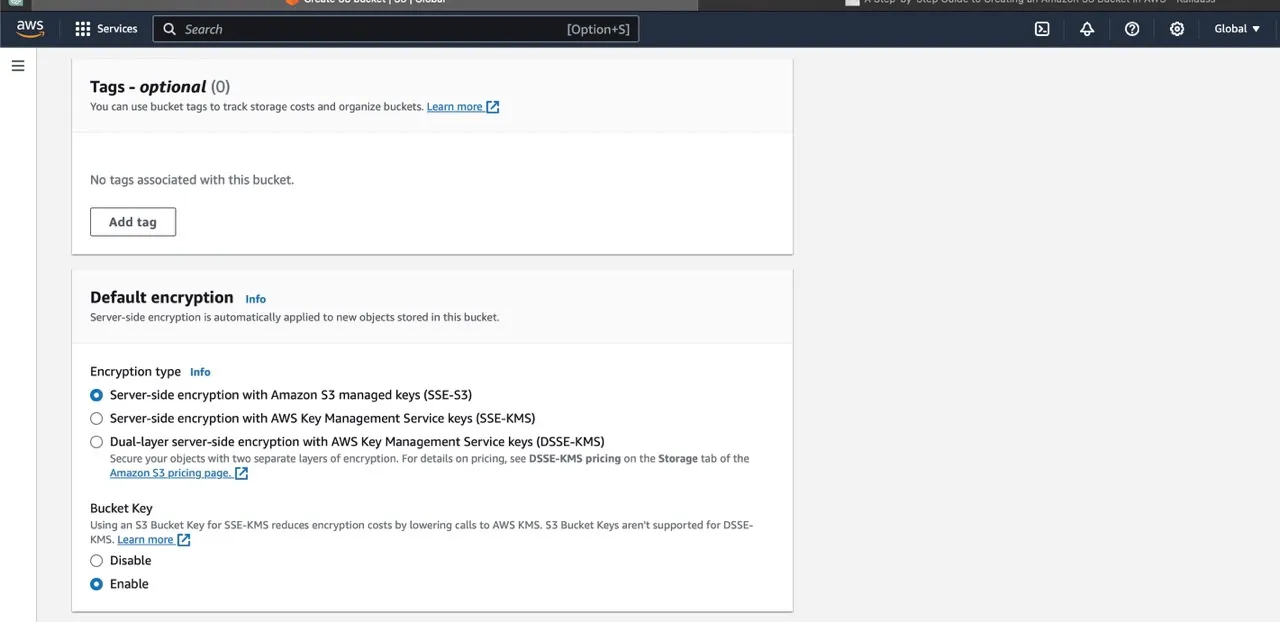
Configure Default Encryption
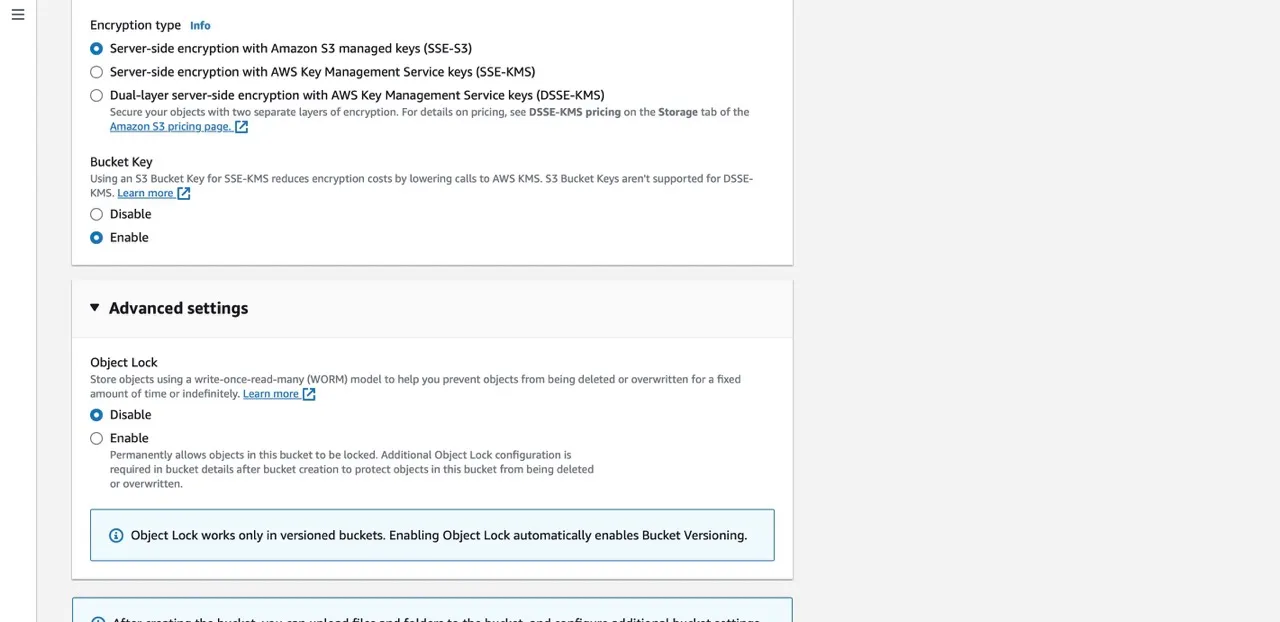
Every new bucket is encrypted by default with Amazon S3 managed keys, so encryption is never off. This step only lets you choose which type to use:
- Amazon S3 managed keys (SSE-S3): The default. S3 manages the keys for you at no extra cost.
- AWS Key Management Service keys (SSE-KMS): Uses AWS KMS for encryption, giving you key policies, rotation control, and CloudTrail audit logs.
- Dual-layer encryption with AWS KMS keys (DSSE-KMS): Applies two layers of encryption, for compliance requirements that call for it.
Choose an AWS KMS Key (SSE-KMS and DSSE-KMS only)
If you choose a KMS option, you must specify a KMS key. You can pick one of your available keys or enter a key ARN. The key must be in the same AWS Region as the bucket.
Enable S3 Bucket Keys (Optional)
With SSE-KMS, enabling S3 Bucket Keys reduces the number of requests to AWS KMS and lowers encryption costs.
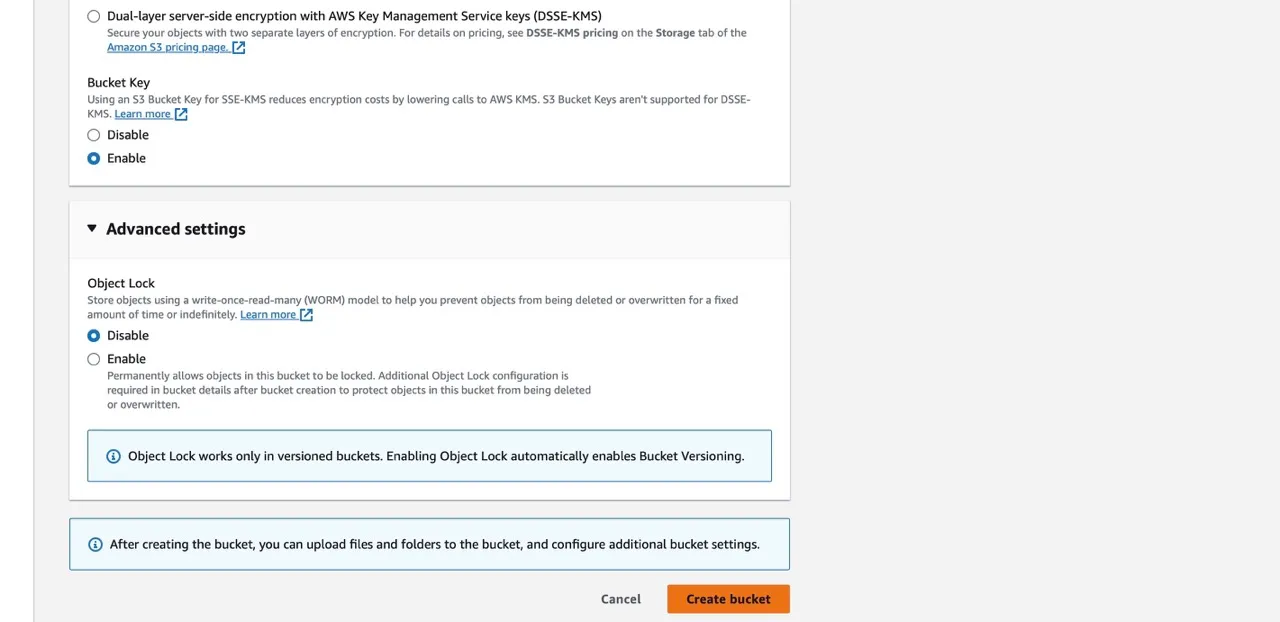
Enable S3 Object Lock (Optional)
Object Lock protects objects from being deleted or overwritten, either for a fixed period or indefinitely. Two things to know before enabling it:
- It requires versioning, which is turned on automatically, and you can’t suspend versioning on the bucket afterward.
- Once Object Lock is enabled, it can’t be disabled.
Only turn it on if you have a retention or compliance requirement.
Create Your Bucket
Review your settings and click ‘Create bucket.’
Next Steps
-
Verify: Your new bucket appears in the Buckets list. Open it and upload a test file to confirm everything works.
-
Use the CLI: You can create the same bucket from the AWS CLI. Outside
us-east-1, you need to pass the region as a location constraint:aws s3api create-bucket \ --bucket my-example-bucket \ --region eu-central-1 \ --create-bucket-configuration LocationConstraint=eu-central-1 -
Clean up: Empty and delete test buckets you no longer need, since stored objects and versions are billed.
The settings you choose here shape the security and behavior of your bucket, and several of them (the name, the Region, and Object Lock) can’t be changed later. Take a minute to review them before you click create.